Before adding the widget
Install Kapi from the App Store and open it once. The app supports iPhone and iPad with iOS or iPadOS 16.4 or later. Direct start and finish buttons in the widget require version 17 or later of the operating system.
Choose a small widget if you only need the stopwatch, or a medium widget for a little more room and a Kapi character. This guide covers the Home Screen widget; Kapi does not currently provide a Lock Screen widget.
Add Kapi to your Home Screen
The wording of the Home Screen editing menu can vary by iOS version. Follow the option shown on your device.
- Hold an empty part of your Home Screen until its icons begin to move.
- Open Edit, then Add Widget. On versions with a + button, use that button instead.
- Search for Kapi and select it. Pick the small or medium size.
- Add the widget, move it to a place you can reach easily, and finish editing.
Start, finish, then save your moment
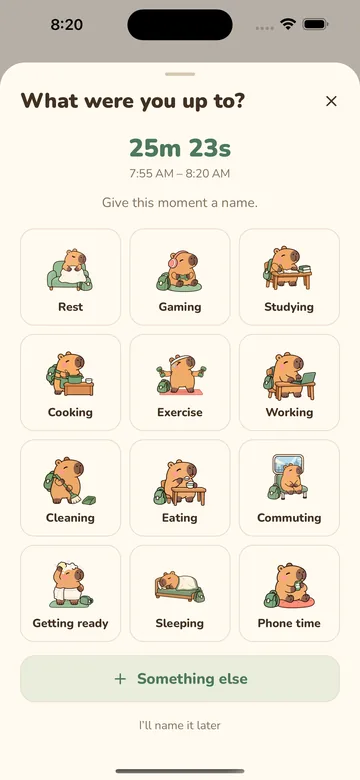
On iOS 17 or later, tap Start a moment in the widget as your activity begins. The elapsed time counts up. When you are done, tap Finish. The stopped duration stays visible as Time spent, so you can see how long the activity lasted before giving it a name.
Tap What did you do? to open the activity picker in Kapi. Choose an activity or write a name, then save it to your journal. The clock is already stopped; time spent choosing a name is not added to the record.
If the widget is showing an activity waiting for a name, complete that record in the app before beginning the next moment from the widget. The widget and app share the same stopwatch; they are not separate timers.
Using Kapi on iOS 16.4–16.x
Tap the widget to open Kapi, then start or finish the stopwatch inside the app. You can still glance at the running time on your Home Screen. Seeing Open Kapi or Open stopwatch instead of an interactive start button is expected on this version.
If the widget is missing or looks out of date
First open Kapi once after installing or updating it, then look for Kapi again in the widget gallery. Check the operating-system version in Settings if the button behavior differs from the instructions above.
If the displayed state does not match the app, open Kapi to check whether an activity is running or waiting to be named. You can remove and add the widget again without deleting the app. Avoid deleting the app to fix a widget: your journal is stored locally and deleting the app can remove those records.
For a persistent problem, email your device model, iOS version, Kapi version, and the steps that led to it. A screenshot can help; hide personal activity names before sending one.
Make the first record a small one
Try the widget during a cup of tea or a short reading break. Start, finish, name it, and check the result in History. Once the sequence feels familiar, use the daily and weekly views to see how your recorded activities fit together.