Start with one ordinary day
Choose something you want to understand: how long studying really takes, how work fills your afternoon, or whether you leave room for rest. You do not need a perfect account of every minute. Begin with three or four activities you can easily notice.
Keep labels broad at first: Study, Work, Cook, Rest. Reuse the same label for the same kind of activity so that totals remain easy to read. Add detail only when it would help you make a decision, such as separating reading from practice questions.
Use a start, stop, and label routine
Kapi is a count-up stopwatch. You do not choose a 25-minute session or create a task list first. The record follows the activity you actually finish.
- Tap Start a moment as you begin. The start time is saved, so you can leave the app and return later.
- When the activity ends, tap Finish moment. This fixes its end time; choosing a label afterward does not make the recorded activity longer.
- Choose an activity or enter a short name, then save it. A recent label can be selected again next time.
- Start a new moment when you switch activities. For an interruption you want to see separately, finish the current activity before recording the break.
A small time journal example
These fictional entries show a 90-minute slice of a day. Use activity names that you will recognize later. These are example records, not a suggested daily target.
| Start–end | Activity | Time |
|---|---|---|
| 09:00–09:30 | Study · reading | 30 min |
| 09:30–10:15 | Work · writing | 45 min |
| 10:15–10:30 | Rest · tea break | 15 min |
Review totals without losing the story
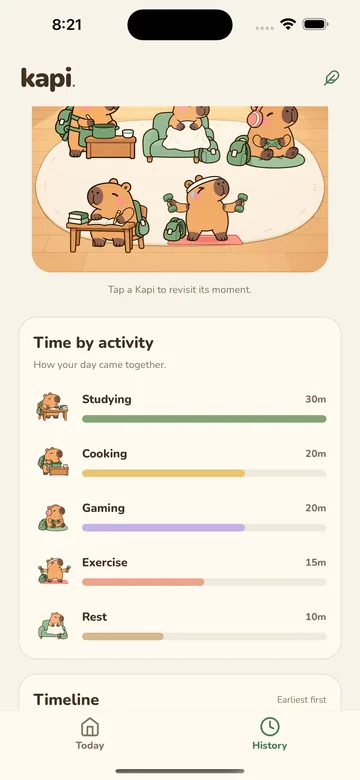
In Kapi, open History and choose the date. Activity totals answer “How long?” while the timeline answers “When?” Looking at both helps you notice whether a long total came from one uninterrupted block or many short moments.
If you recorded only part of the day, treat the total as recorded time, not your entire waking day. A gap does not tell you what happened in it. The weekly view becomes more useful when you have several days recorded in a similar way.
- Which activity took more or less time than I expected?
- Did my day include the rest or personal time I wanted?
- What is one small thing I want to try tomorrow?
What if you forget to start or stop?
Add a missed activity manually with its start and end times. If you left the stopwatch running after you finished, edit the saved record to correct the end time. Use the time you remember as accurately as you can; a correction is more useful than leaving an obviously inflated total.
A time journal is a tool for noticing your day, not a score for how productive you were. Cooking, playing, commuting and resting can all belong. Keep the routine small enough that you want to return to it.
Know where your journal lives
Kapi records activities without an account and stores the journal on your device. Recording works offline. There is no Kapi cloud sync or in-app export, so consider your device backup settings before deleting the app or changing devices. Usage analytics is handled separately from journal contents.